PDF RAG教程:解析文档并构建智能问答系统
技术背景
RAG(检索增强生成)应用常需处理非结构化文档,但传统文本提取工具(如pdfminer)无法解析图表、表格等视觉元素,导致信息丢失。GPT-4o具备多模态理解能力,可分析PDF页面图像,生成详细描述,弥补纯文本提取的不足。该技术适用于知识助手、客服机器人等场景,尤其适合幻灯片、网页导出等富含视觉信息的文档。主要限制包括API成本、处理速度及对图像质量的依赖。
核心原理
核心原理是双通道处理:1)用pdfminer提取文本,保留原始文字;2)用pdf2image将PDF转为图像,通过GPT-4o生成页面描述。然后按页合并文本与描述,清洗后分块,用text-embedding-3-small生成嵌入向量。检索时计算查询与内容的余弦相似度,取top_k结果,若相似度超阈值则拼接为上下文,交由GPT-4o生成答案。关键设计决策包括:跳过首页(通常为封面)、并发调用API加速、基于标题匹配合并文本与描述、设置相似度阈值过滤无关内容。
架构分析
系统分为四层:1)数据准备层:pdf2image转换图像,pdfminer提取文本;2)内容理解层:GPT-4o分析图像,生成结构化描述;3)索引层:分块、清洗、嵌入,存储为CSV或向量库;4)检索生成层:余弦相似度检索,阈值过滤,GPT-4o生成回答。组件关系:图像分析结果与文本按标题对齐合并,嵌入模型独立于生成模型。设计思想是“视觉+文本”互补,通过并发和缓存(保存JSON/CSV)提升效率,阈值机制平衡相关性与召回。
完整实战教程
为RAG应用解析PDF文档
本笔记本展示了如何利用GPT-4o将丰富的PDF文档(如幻灯片或网页导出)转换为RAG应用可用的内容。
如果您有大量包含有价值信息的非结构化数据,并希望能够在RAG管道中检索这些信息,则可以使用此技术。
例如,您可以构建一个知识助手,根据PDF文档中包含的信息回答用户关于您公司或产品的查询。
本笔记本中使用的示例文档位于data/example_pdfs。它们与OpenAI的API以及可作为LLM项目一部分使用的各种技术相关。
数据准备
在本节中,我们将处理输入数据,为检索做好准备。
我们将通过两种方式来实现:
- 使用 pdfminer 提取文本
- 将 PDF 页面转换为图像,以便用 GPT-4o 进行分析
如果你只想使用从图像分析中推断出的内容,可以跳过第一种方法。
设置
我们需要安装一些库来将 PDF 转换为图像并提取文本(可选)。
注意:你需要在机器上安装 poppler,pdf2image 库才能正常工作。你可以按照此处的说明进行安装。
%pip install pdf2image -q
%pip install pdfminer -q
%pip install pdfminer.six -q
%pip install openai -q
%pip install scikit-learn -q
%pip install rich -q
%pip install tqdm -q
%pip install pandas -q
# Imports
from pdf2image import convert_from_path
from pdf2image.exceptions import (
    PDFInfoNotInstalledError,
    PDFPageCountError,
    PDFSyntaxError
)
from pdfminer.high_level import extract_text
import base64
import io
import os
import concurrent.futures
from tqdm import tqdm
from openai import OpenAI
import re
import pandas as pd
from sklearn.metrics.pairwise import cosine_similarity
import json
import numpy as np
from rich import print
from ast import literal_eval
文件处理
def convert_doc_to_images(path):
    images = convert_from_path(path)
    return images

def extract_text_from_doc(path):
    text = extract_text(path)
    return text
用一个例子进行测试
file_path = "data/example_pdfs/fine-tuning-deck.pdf"

images = convert_doc_to_images(file_path)
text = extract_text_from_doc(file_path)
for img in images:
    display(img)
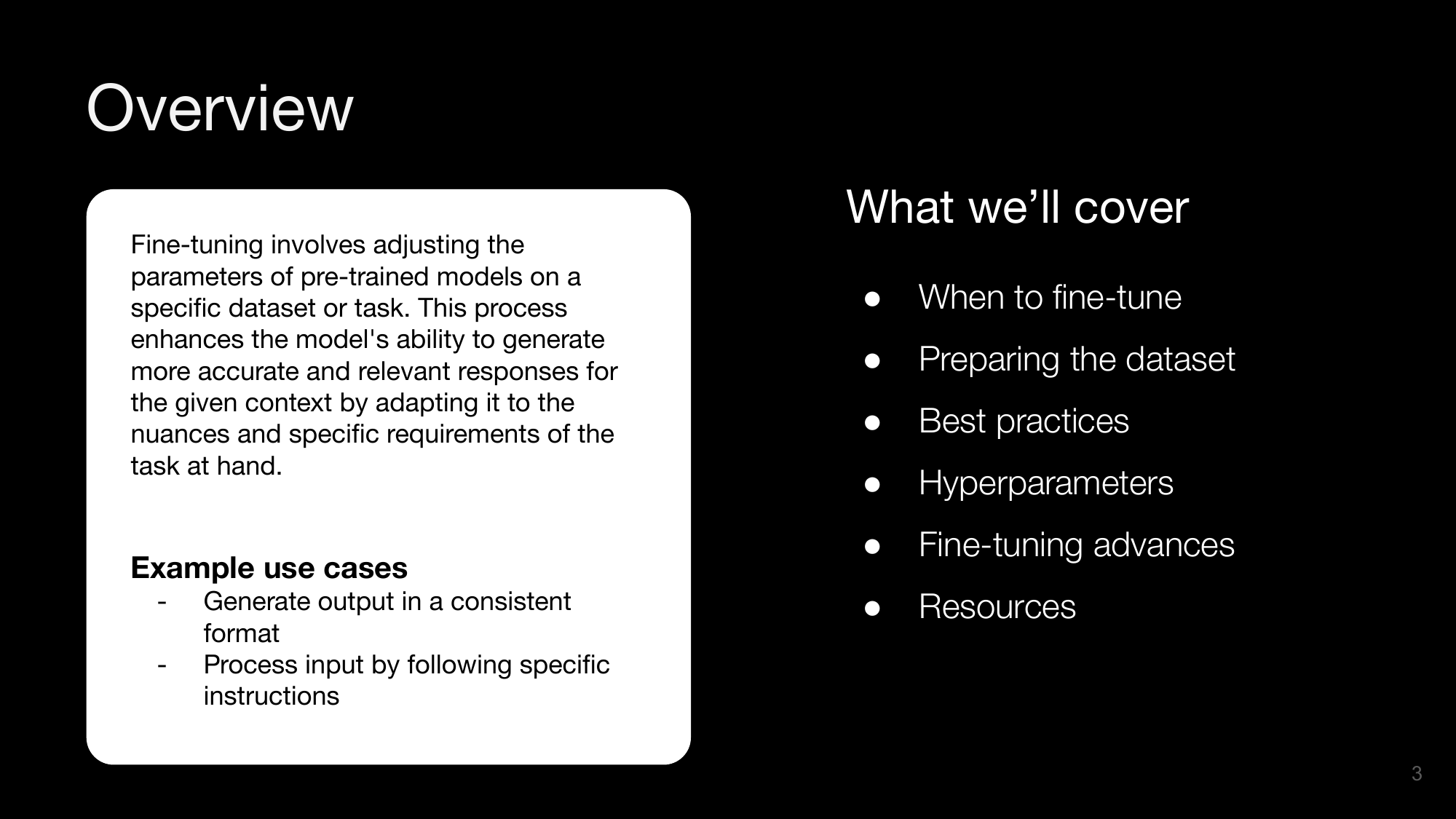
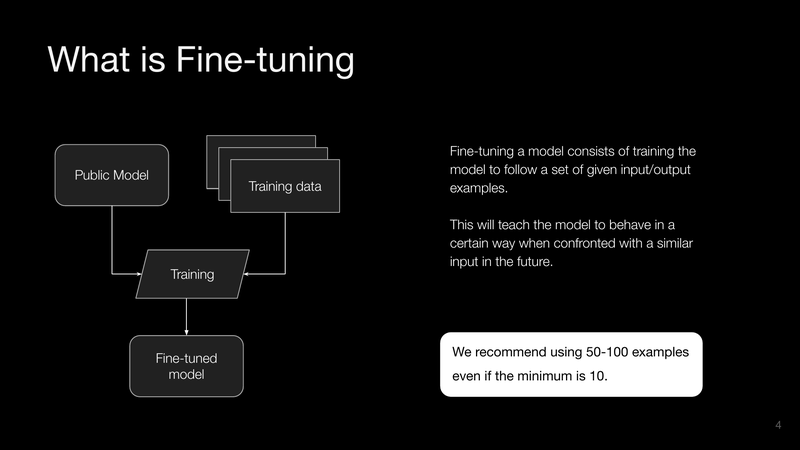
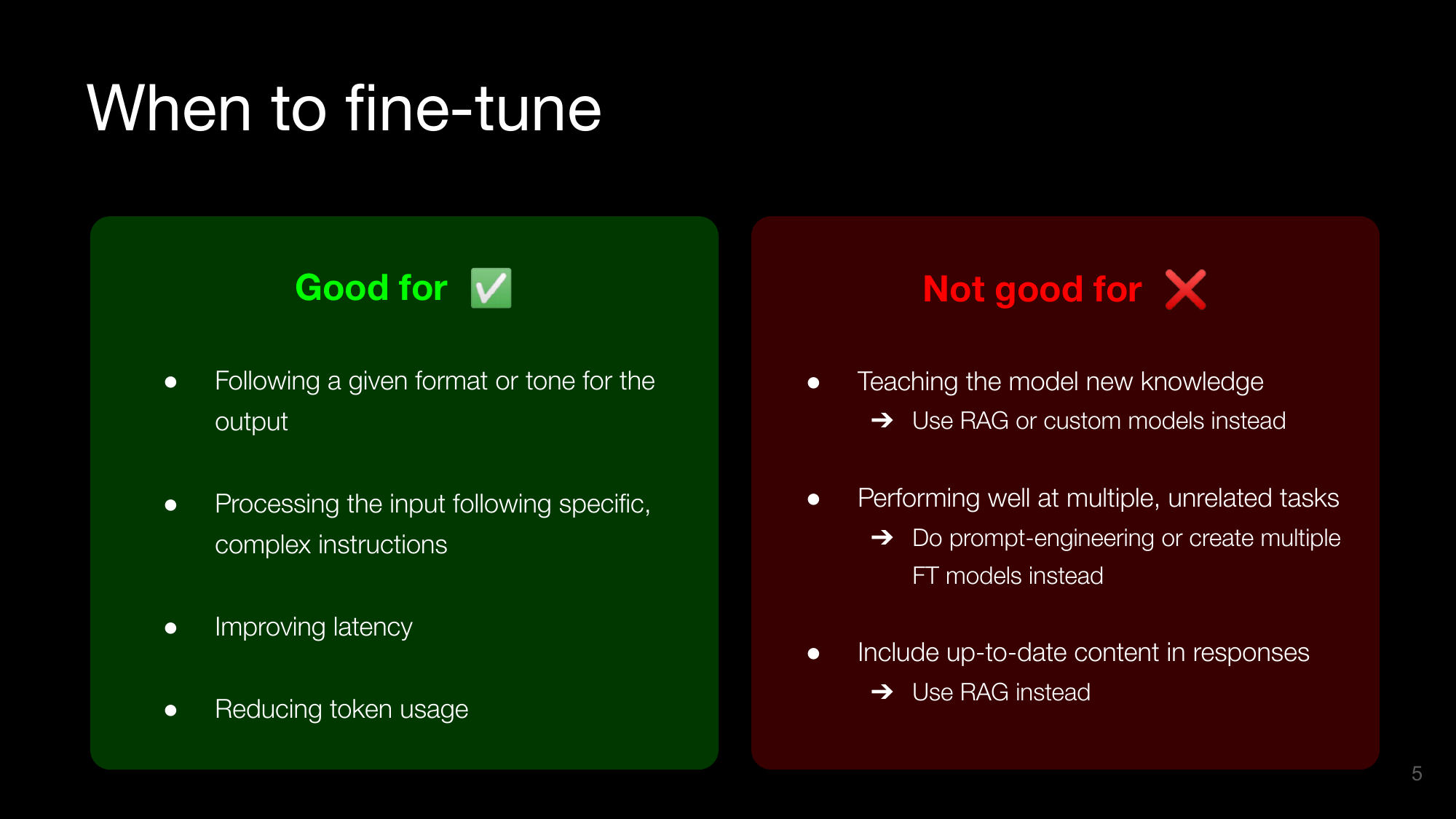
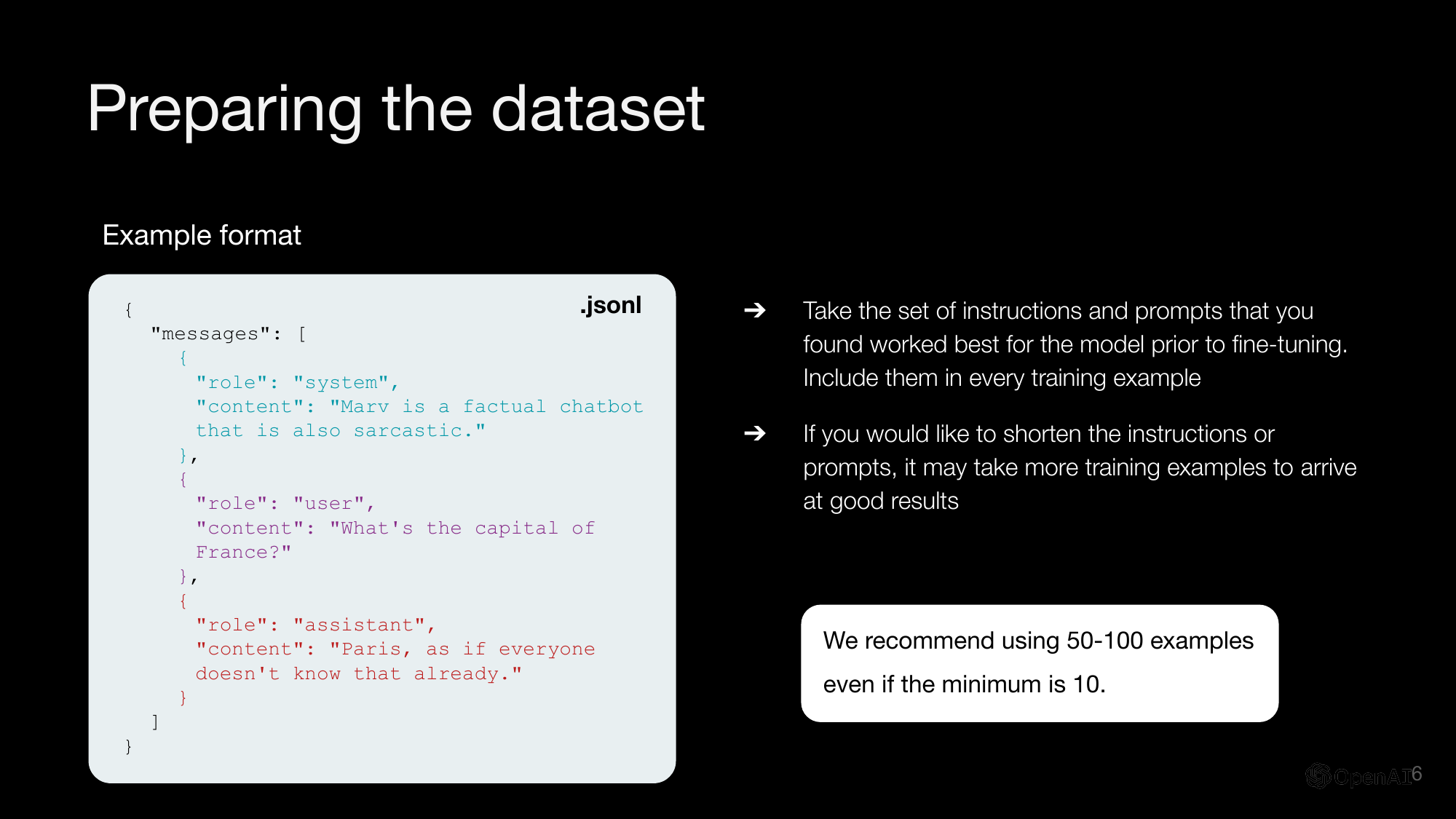
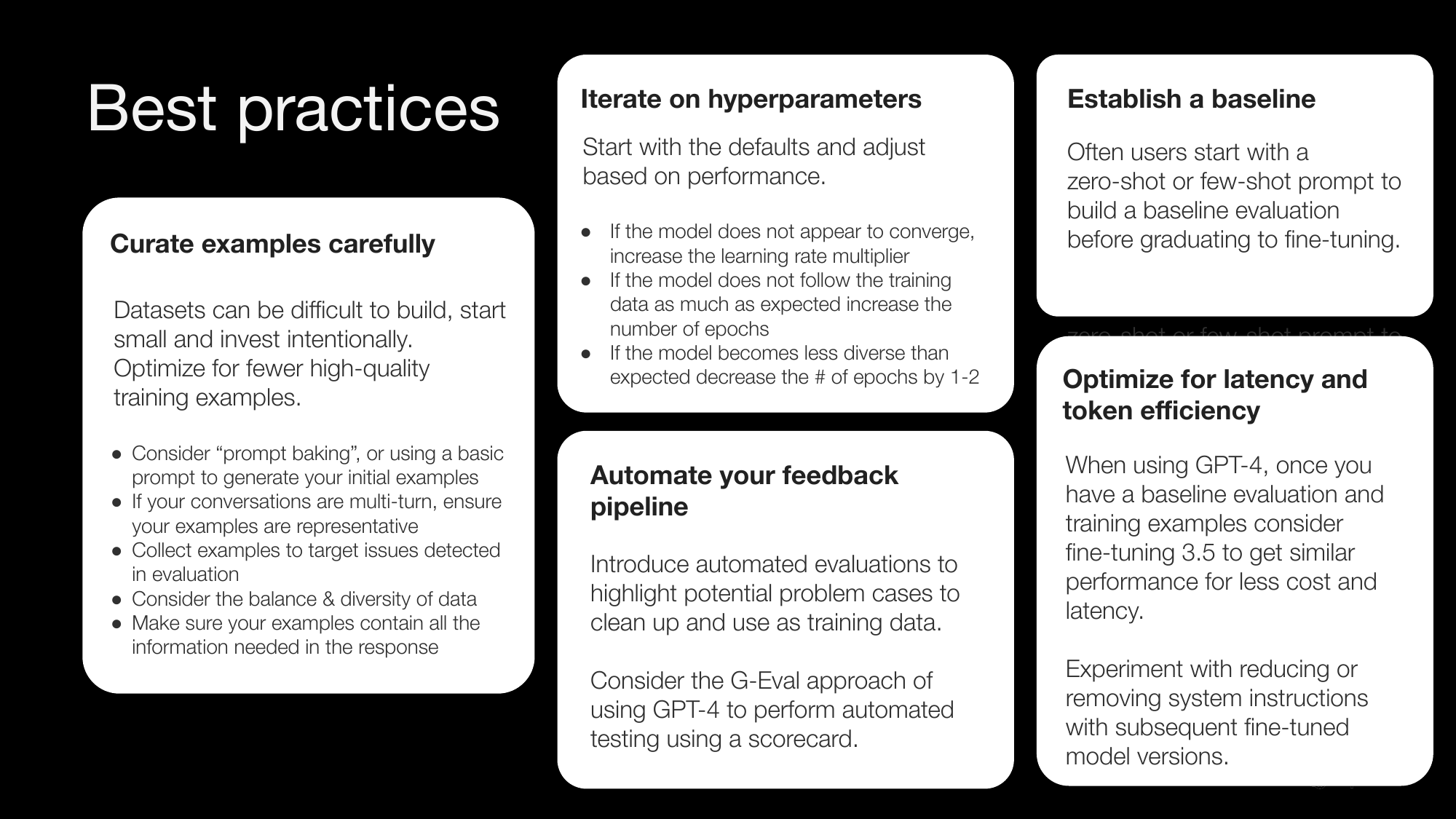
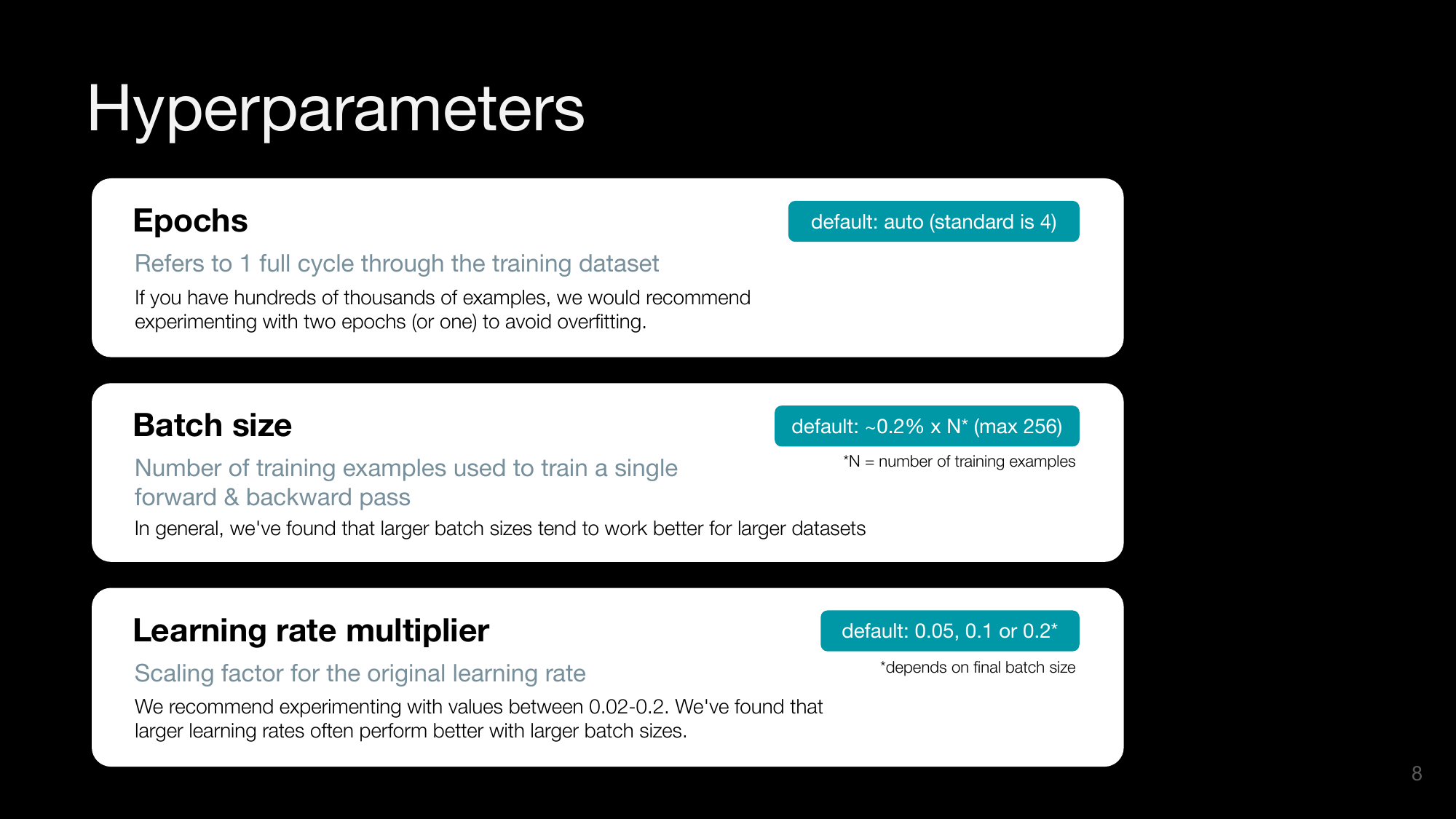
使用 GPT-4o 进行图像分析
将 PDF 文件转换为多张图像后,我们将使用 GPT-4o 基于这些图像来分析内容。
# Initializing OpenAI client - see https://platform.openai.com/docs/quickstart?context=python
client = OpenAI()
# Converting images to base64 encoded images in a data URI format to use with the ChatCompletions API
def get_img_uri(img):
    png_buffer = io.BytesIO()
    img.save(png_buffer, format="PNG")
    png_buffer.seek(0)

    base64_png = base64.b64encode(png_buffer.read()).decode('utf-8')

    data_uri = f"data:image/png;base64,{base64_png}"
    return data_uri
system_prompt = '''
You will be provided with an image of a PDF page or a slide. Your goal is to deliver a detailed and engaging presentation about the content you see, using clear and accessible language suitable for a 101-level audience.

If there is an identifiable title, start by stating the title to provide context for your audience.

Describe visual elements in detail:

- **Diagrams**: Explain each component and how they interact. For example, "The process begins with X, which then leads to Y and results in Z."

- **Tables**: Break down the information logically. For instance, "Product A costs X dollars, while Product B is priced at Y dollars."

Focus on the content itself rather than the format:

- **DO NOT** include terms referring to the content format.

- **DO NOT** mention the content type. Instead, directly discuss the information presented.

Keep your explanation comprehensive yet concise:

- Be exhaustive in describing the content, as your audience cannot see the image.

- Exclude irrelevant details such as page numbers or the position of elements on the image.

Use clear and accessible language:

- Explain technical terms or concepts in simple language appropriate for a 101-level audience.

Engage with the content:

- Interpret and analyze the information where appropriate, offering insights to help the audience understand its significance.

------

If there is an identifiable title, present the output in the following format:

{TITLE}

{Content description}

If there is no clear title, simply provide the content description.
'''

def analyze_image(data_uri):
    response = client.chat.completions.create(
        model="gpt-4o",
        messages=[
            {"role": "system", "content": system_prompt},
            {
                "role": "user",
                "content": [
                    {
                    "type": "image_url",
                    "image_url": {
                        "url": f"{data_uri}"
                    }
                    }
                ]
                },
        ],
        max_tokens=500,
        temperature=0,
        top_p=0.1
    )
    return response.choices[0].message.content
用一个例子来测试
img = images[2]
display(img)
data_uri = get_img_uri(img)
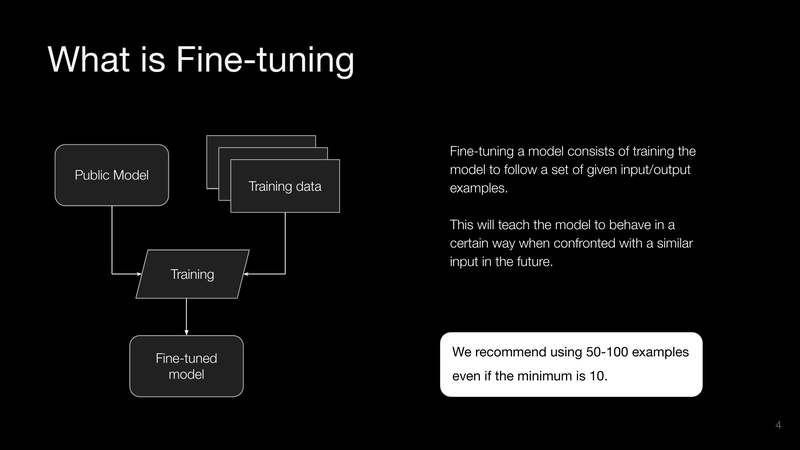
res = analyze_image(data_uri)
print(res)
处理所有文档
files_path = "data/example_pdfs"

all_items = os.listdir(files_path)
files = [item for item in all_items if os.path.isfile(os.path.join(files_path, item))]
def analyze_doc_image(img):
    img_uri = get_img_uri(img)
    data = analyze_image(img_uri)
    return data
我们将列出示例文件夹中的所有文件,并按以下步骤处理它们:
- 提取文本
- 将文档转换为图像
- 使用 GPT-4o 分析页面
注意:运行大约需要 2 分钟。可以随意跳过,直接加载结果文件(见下文)。
docs = []

for f in files:

    path = f"{files_path}/{f}"
    doc = {
        "filename": f
    }
    text = extract_text_from_doc(path)
    doc['text'] = text
    imgs = convert_doc_to_images(path)
    pages_description = []

    print(f"Analyzing pages for doc {f}")

    # Concurrent execution
    with concurrent.futures.ThreadPoolExecutor(max_workers=8) as executor:

        # Removing 1st slide as it's usually just an intro
        futures = [
            executor.submit(analyze_doc_image, img)
            for img in imgs[1:]
        ]

        with tqdm(total=len(imgs)-1) as pbar:
            for _ in concurrent.futures.as_completed(futures):
                pbar.update(1)

        for f in futures:
            res = f.result()
            pages_description.append(res)

    doc['pages_description'] = pages_description
    docs.append(doc)
# Saving result to file for later
json_path = "data/parsed_pdf_docs.json"

with open(json_path, 'w') as f:
    json.dump(docs, f)
# Optional: load content from the saved file
with open(json_path, 'r') as f:
    docs = json.load(f)
嵌入内容
在嵌入内容之前,我们将按页面进行逻辑分块。
对于真实场景,你可以探索更高级的内容分块方式:
- 将其切分成更小的片段
- 在每段内容开头添加数据——例如幻灯片标题、演示文稿标题和/或文档描述。这样,每个独立的分块都能处于上下文中
为简洁起见,我们将使用一种非常简单的分块策略,并依靠分隔符按页面拆分文本。
# Chunking content by page and merging together slides text & description if applicable
content = []
for doc in docs:
    # Removing first slide as well
    text = doc['text'].split('\f')[1:]
    description = doc['pages_description']
    description_indexes = []
    for i in range(len(text)):
        slide_content = text[i] + '\n'
        # Trying to find matching slide description
        slide_title = text[i].split('\n')[0]
        for j in range(len(description)):
            description_title = description[j].split('\n')[0]
            if slide_title.lower() == description_title.lower():
                slide_content += description[j].replace(description_title, '')
                # Keeping track of the descriptions added
                description_indexes.append(j)
        # Adding the slide content + matching slide description to the content pieces
        content.append(slide_content)
    # Adding the slides descriptions that weren't used
    for j in range(len(description)):
        if j not in description_indexes:
            content.append(description[j])
for c in content:
    print(c)
    print("\n\n-------------------------------\n\n")
# Cleaning up content
# Removing trailing spaces, additional line breaks, page numbers and references to the content being a slide
clean_content = []
for c in content:
    text = c.replace(' \n', '').replace('\n\n', '\n').replace('\n\n\n', '\n').strip()
    text = re.sub(r"(?<=\n)\d{1,2}", "", text)
    text = re.sub(r"\b(?:the|this)\s*slide\s*\w+\b", "", text, flags=re.IGNORECASE)
    clean_content.append(text)
for c in clean_content:
    print(c)
    print("\n\n-------------------------------\n\n")
# Creating the embeddings
# We'll save to a csv file here for testing purposes but this is where you should load content in your vectorDB.
df = pd.DataFrame(clean_content, columns=['content'])
print(df.shape)
df.head()
embeddings_model = "text-embedding-3-large"

def get_embeddings(text):
    embeddings = client.embeddings.create(
      model="text-embedding-3-small",
      input=text,
      encoding_format="float"
    )
    return embeddings.data[0].embedding
df['embeddings'] = df['content'].apply(lambda x: get_embeddings(x))
df.head()
# Saving locally for later
data_path = "data/parsed_pdf_docs_with_embeddings.csv"
df.to_csv(data_path, index=False)
# Optional: load data from saved file
df = pd.read_csv(data_path)
df["embeddings"] = df.embeddings.apply(literal_eval).apply(np.array)
检索增强生成
该流程的最后一步是:在检索到内容作为回复上下文后,针对输入查询生成输出。
system_prompt = '''
    You will be provided with an input prompt and content as context that can be used to reply to the prompt.

    You will do 2 things:

    1. First, you will internally assess whether the content provided is relevant to reply to the input prompt.

    2a. If that is the case, answer directly using this content. If the content is relevant, use elements found in the content to craft a reply to the input prompt.

    2b. If the content is not relevant, use your own knowledge to reply or say that you don't know how to respond if your knowledge is not sufficient to answer.

    Stay concise with your answer, replying specifically to the input prompt without mentioning additional information provided in the context content.
'''

model="gpt-4o"

def search_content(df, input_text, top_k):
    embedded_value = get_embeddings(input_text)
    df["similarity"] = df.embeddings.apply(lambda x: cosine_similarity(np.array(x).reshape(1,-1), np.array(embedded_value).reshape(1, -1)))
    res = df.sort_values('similarity', ascending=False).head(top_k)
    return res

def get_similarity(row):
    similarity_score = row['similarity']
    if isinstance(similarity_score, np.ndarray):
        similarity_score = similarity_score[0][0]
    return similarity_score

def generate_output(input_prompt, similar_content, threshold = 0.5):

    content = similar_content.iloc[0]['content']

    # Adding more matching content if the similarity is above threshold
    if len(similar_content) > 1:
        for i, row in similar_content.iterrows():
            similarity_score = get_similarity(row)
            if similarity_score > threshold:
                content += f"\n\n{row['content']}"

    prompt = f"INPUT PROMPT:\n{input_prompt}\n-------\nCONTENT:\n{content}"

    completion = client.chat.completions.create(
        model=model,
        temperature=0.5,
        messages=[
            {
                "role": "system",
                "content": system_prompt
            },
            {
                "role": "user",
                "content": prompt
            }
        ]
    )

    return completion.choices[0].message.content
# Example user queries related to the content
example_inputs = [
    'What are the main models you offer?',
    'Do you have a speech recognition model?',
    'Which embedding model should I use for non-English use cases?',
    'Can I introduce new knowledge in my LLM app using RAG?',
    'How many examples do I need to fine-tune a model?',
    'Which metric can I use to evaluate a summarization task?',
    'Give me a detailed example for an evaluation process where we are looking for a clear answer to compare to a ground truth.',
]
# Running the RAG pipeline on each example
for ex in example_inputs:
    print(f"[deep_pink4][bold]QUERY:[/bold] {ex}[/deep_pink4]\n\n")
    matching_content = search_content(df, ex, 3)
    print(f"[grey37][b]Matching content:[/b][/grey37]\n")
    for i, match in matching_content.iterrows():
        print(f"[grey37][i]Similarity: {get_similarity(match):.2f}[/i][/grey37]")
        print(f"[grey37]{match['content'][:100]}{'...' if len(match['content']) > 100 else ''}[/[grey37]]\n\n")
    reply = generate_output(ex, matching_content)
    print(f"[turquoise4][b]REPLY:[/b][/turquoise4]\n\n[spring_green4]{reply}[/spring_green4]\n\n--------------\n\n")
总结
在本笔记本中,我们学习了如何基于 PDF 文档开发一个基础的 RAG 管道。这包括:
- 如何解析 PDF 文档,以幻灯片和 HTML 页面导出为例,使用 Python 库以及 GPT-4o 来解释视觉内容
- 如何处理提取的内容,清理并将其分块成多个片段
- 如何使用 OpenAI 嵌入对处理后的内容进行嵌入
- 如何检索与输入查询相关的内容
- 如何使用 GPT-4o 以检索到的内容作为上下文生成答案
如果你想进一步探索,可以考虑以下优化:
- 尝试提供的示例提示
- 进一步分块内容,并将元数据作为上下文添加到每个块中
- 在检索结果上添加基于规则的过滤,或对结果进行重新排序,以呈现最相关的内容
你可以将本笔记本中涵盖的技术应用于多种用例,例如可以访问你专有数据的助手、可以读取你内部政策的客户服务或 FAQ 机器人,或者任何需要利用更适合以图像形式理解的丰富文档的场景。
常见问题
常见错误:1)poppler未安装导致pdf2image报错,需按官方文档安装;2)API调用超时或限流,建议增加重试、降低并发数;3)图像base64编码过大,可压缩图像质量;4)标题匹配失败导致描述未合并,需检查文本提取的标题格式;5)嵌入向量维度不一致,确保使用同一模型。排查方法:检查日志、验证API密钥、测试单页处理。生产优化:使用异步请求、缓存嵌入结果、采用更精细的分块策略(如按语义分割)、添加元数据过滤、对检索结果重排序。
企业应用扩展
可扩展方向:1)支持更多文档格式(如PPTX、HTML);2)引入多模态嵌入模型(如CLIP)直接处理图像;3)结合规则过滤与重排序模型提升检索精度;4)将嵌入存储至向量数据库(如Pinecone、Weaviate)以支持大规模检索;5)增加评估环节,使用RAGAS等框架量化效果;6)探索更高级的分块方法,如按标题层级或语义相似度分割,并在块首添加文档摘要作为上下文。
总结
本教程面向有编程基础的开发者,讲解如何将PDF文档(如幻灯片、网页导出)转换为RAG应用可用的结构化内容。通过pdfminer提取文本,并利用GPT-4o对页面图像进行视觉分析,生成详细描述,再经分块、清洗、嵌入后存入向量库,最终实现基于检索的问答。教程涵盖环境准备、代码解析、常见错误与生产优化,帮助开发者构建能理解丰富视觉信息的RAG管道。
- --
内容来源与验证
- 内容等级:PREMIUM_A
- 质量等级:A
- 难度:中级
- 验证等级:V1
- 原文作者:katiagg, MW-OAI
- 原文日期:2024-09-29
- 来源许可:MIT
- 来源版本:
b878f4d3da80b78f6a9202db9f9e20e77c705a5e - 查看原文
站内还有更多完整实战教程
加入会员,解锁全部教程、完整代码与持续更新内容。
加入会员